
Android Device
Get support for using the Midco Softphone app on your Android device.
Visit Google Play to download the Android Softphone app for mobile phones and tablets.
Current Softphone Version for Android Devices: V2.31.15.49.


Get support for using the Midco Softphone app on your Android device.
Visit Google Play to download the Android Softphone app for mobile phones and tablets.
Current Softphone Version for Android Devices: V2.31.15.49.
1. Log in to CommPortal.
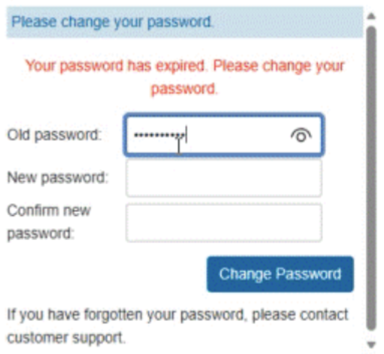
2. Once logged in, a No Account Email Set will pop up on your first log in.
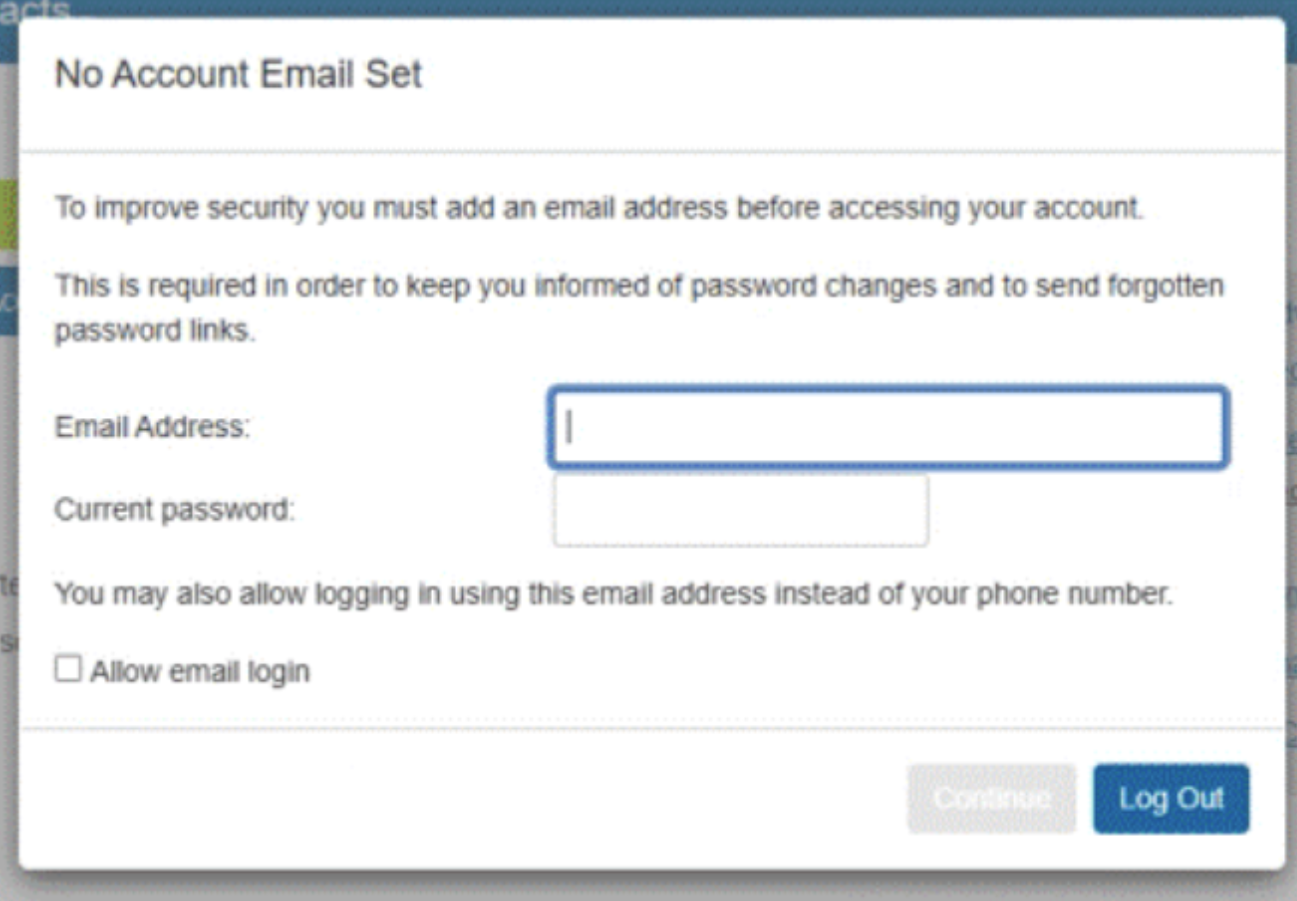
Please fill out your email address and password. Then check the Allow Email Login box.
Important: By inputting an email address, you will be able to reset your password on your own.
3. Navigate to the Midco Softphone app and log in with your new credentials (the same credentials as your Midco Softphone login).
4. Click Login.
5. Enter your cell phone number. This will allow the app to transfer active calls to your optional cell number. Press Continue.
This will allow the app to transfer active calls to your optional cell number.
6. Follow the navigation prompts to learn your way around the app.
Important: Allowing the app to run in the background ensures all calls will come through when the app is not in active use. Denying the app to run in the background will improve battery life, but calls may not always come through.